问题

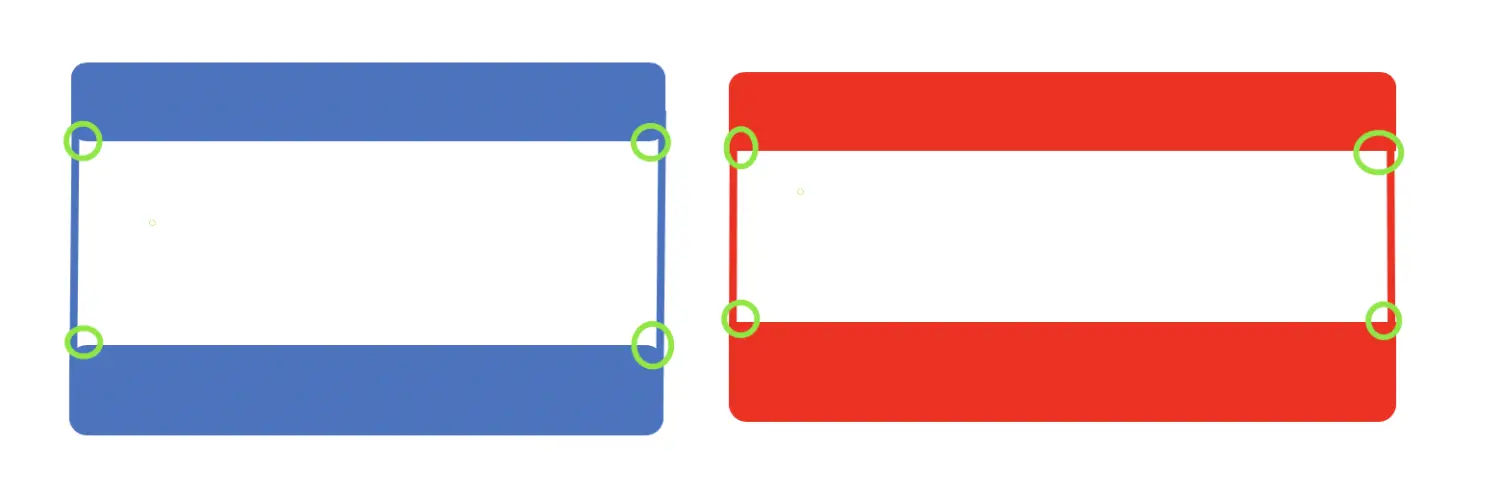
在进行今天的内容之前,首先我想问一个问题:下图中,蓝色选择框与红色选择框除颜色、大小外有何不同?(我会在后文揭晓答案)
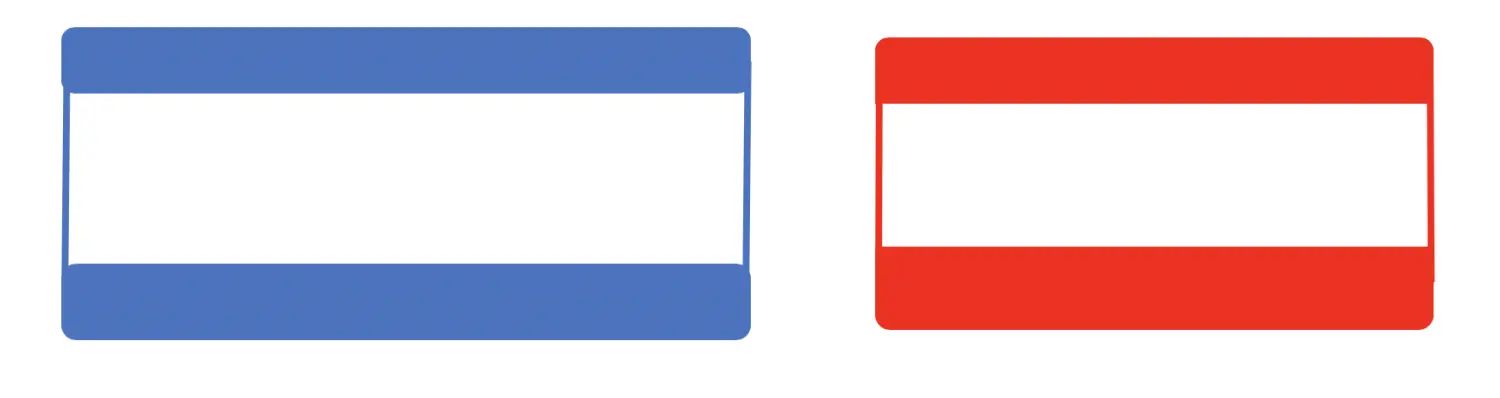
图1

目标

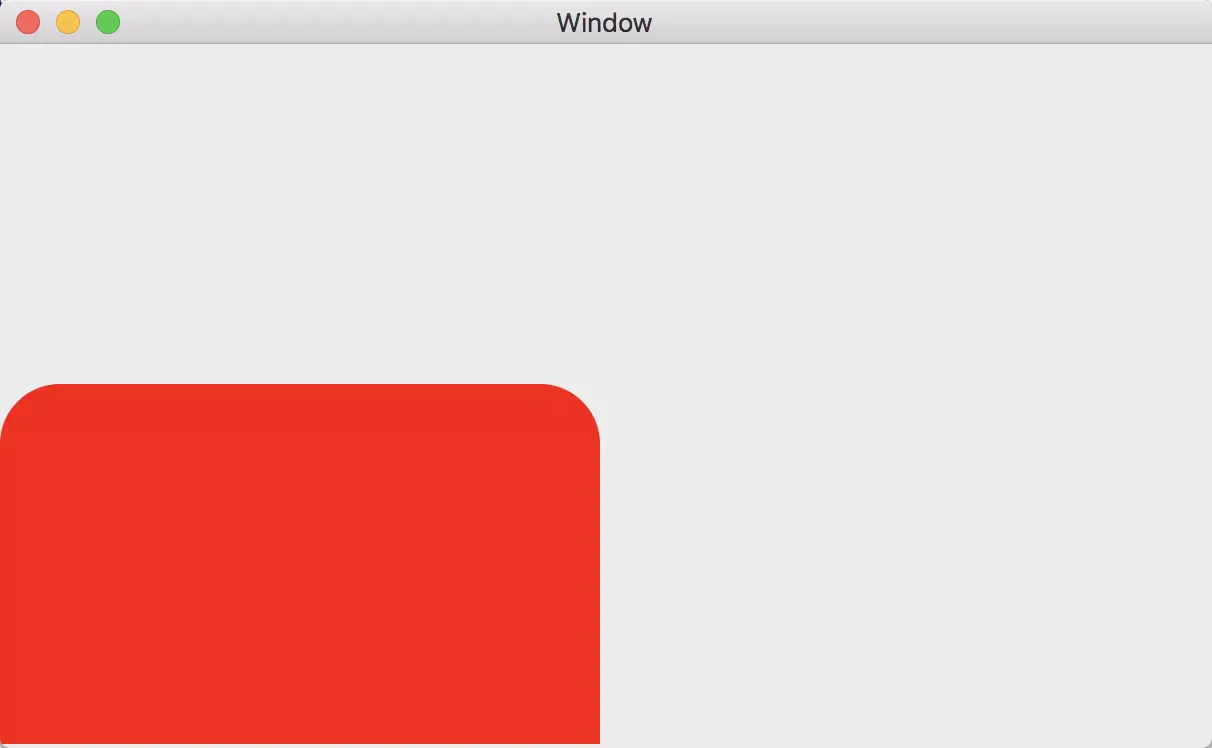
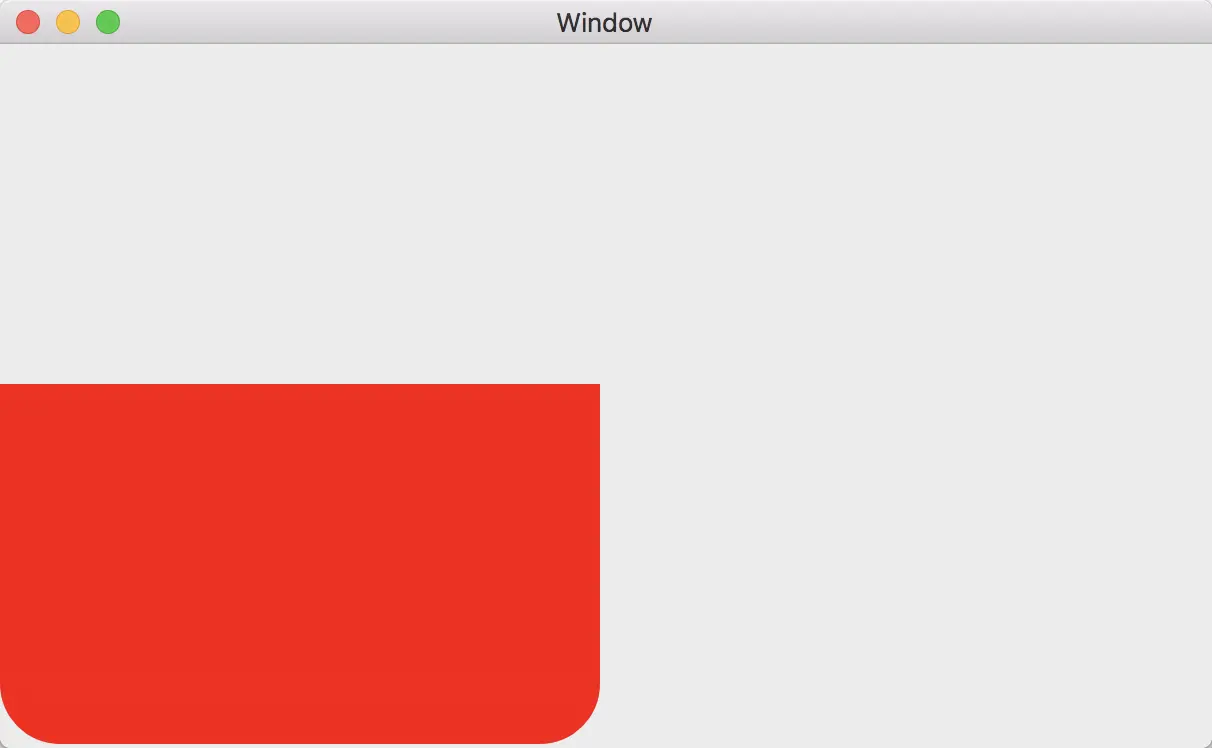
本文今天要讨论的是:在Mac OS X下,如何实现矩形的部分圆角。

比如这样:

图2

或者这样:

图3

解决方案

要想实现上图样式,有两种解决方案。

方案1:蠢萌描点法

蠢萌描点法实现图2的原理图如下:
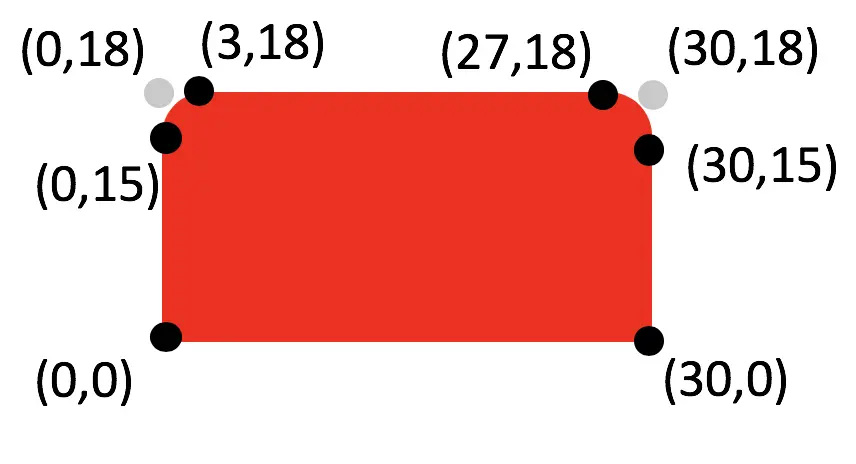
蠢萌描点法原理图

如上图所示,首先确定整个矩形的的几个特殊点,然后通过CGContextAddLineToPoint来实现绘制。

核心代码

1
2
3
4
5
6
7
8
9
10
11
12
13
14
15
16
17
18
19
20
21
22
23
24
25
26
27
28
- (void)drawRect:(NSRect)dirtyRect {
[super drawRect:dirtyRect];

CGMutablePathRef path = CGPathCreateMutable();
CGContextRef cr = [[NSGraphicsContext currentContext] graphicsPort];

CGContextAddPath(cr, path);
//为了照顾视力不好的童鞋,我将图2的坐标扩大了10倍。
//顺时针将坐标填充入参数即可
CGContextMoveToPoint(cr, 0, 0);
CGContextAddLineToPoint(cr, 0, 150);
CGContextAddArcToPoint(cr,
0, 180,
30, 180,
30);
CGContextAddLineToPoint(cr, 270, 180);
CGContextAddArcToPoint(cr,
300, 180,
300, 150,
30);
CGContextAddLineToPoint(cr, 300, 0);
CGContextAddLineToPoint(cr, 0, 0);

CGContextSetRGBFillColor(cr, 255.0/255.0, 0.0/255.0, 0.0/255.0, 1);
CGContextDrawPath(cr, kCGPathFill);

CGPathRelease(path);
}

效果

蠢萌描点法效果

根据写代码来看,蠢萌描点法手法过于粗糙,我不会告诉你在实际项目中坐标花了我大半天时间去计算。(真的是半天!)
So…方案二腾空出世!

##方案二:猥琐遮掩法
猥琐遮盖法实现图3的原理如下:

猥琐遮盖法原理图

看上去极易操作,代码极易简洁,符合我一贯的代码美学风格,完美,所以接下来…我们继续算坐标!(狗头)
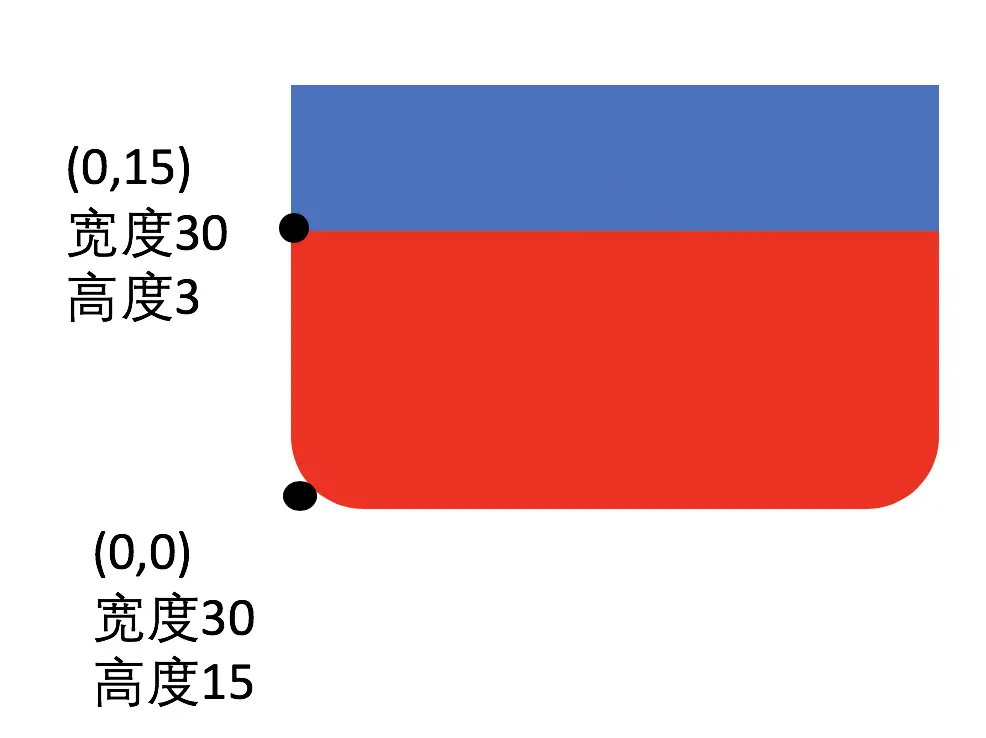
image.png

核心代码

1
2
3
4
5
6
7
8
9
10
11
12
13
14
15
16
- (void)drawRect:(NSRect)dirtyRect {
[super drawRect:dirtyRect];
NSRect originalRect = NSMakeRect(0, 0, 300, 180);
NSRect coverRect = NSMakeRect(0, 150, 300, 30);

NSColor *red = [NSColor redColor];
[red setFill];

//圆角矩形
NSBezierPath *originalPath = [NSBezierPath bezierPathWithRoundedRect:originalRect xRadius:30 yRadius:30];
[originalPath fill];

//遮掩矩形
NSBezierPath *coverPath = [NSBezierPath bezierPathWithRect:coverRect];
[coverPath fill];
}

效果图

猥琐遮掩法实现图2效果图

结语

那么图1中,两个选择框究竟有什么区别呢,如图所示:

不同

搞了这么多花里胡哨,终于满足了美工姐姐的奇葩需求,完美!